Write help articles
Publish help articles that let customers solve problems without contacting you.
The Knowledge Base holds help articles. Good articles mean fewer repeat tickets.
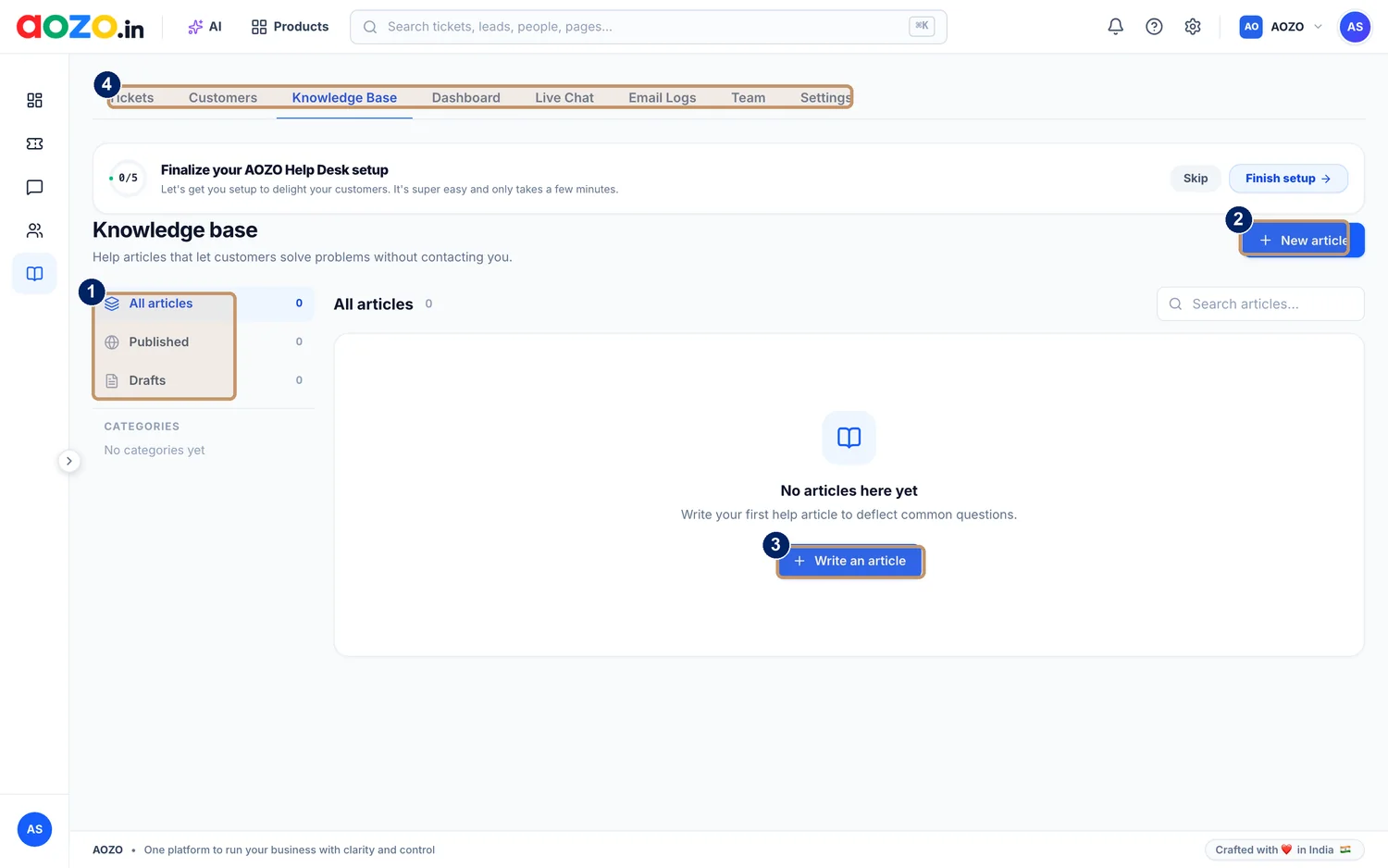
- All articles, Published and Drafts
- New article
- Write an article, shown while the list is empty
- Helpdesk tabs with Knowledge Base selected
Open the Knowledge Base
In Helpdesk, choose the Knowledge Base tab. A new help desk shows “No articles here yet”.
Write an article
Choose New article or Write an article. Give it a clear title and write the answer in plain words.

- New article
Keep it as a draft or publish it
Save it as a draft while you check it, then publish it. Use the All articles, Published and Drafts views to see where each one is.
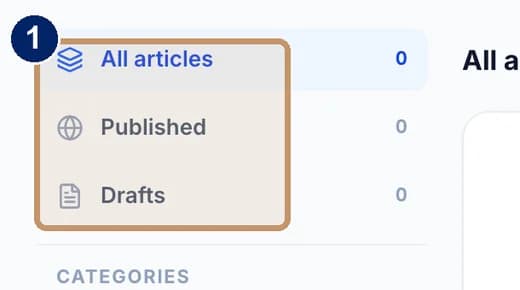
- Article views
Organise with categories
Add categories so customers can browse. The list shows “No categories yet” until you add some.

#What to write about
- The questions that come up in tickets again and again.
- Steps people get stuck on, with each step in its own line.
- Short answers first, then detail.
Tip
Once a week, look at the tickets that repeat. Each repeating question is a help article waiting to be written.