Work the ticket queue
Use views, filters and search to find the ticket that needs you, and create tickets by hand.
The Tickets page opens on “All unresolved”. Every view shows a count so you can see where the work is.
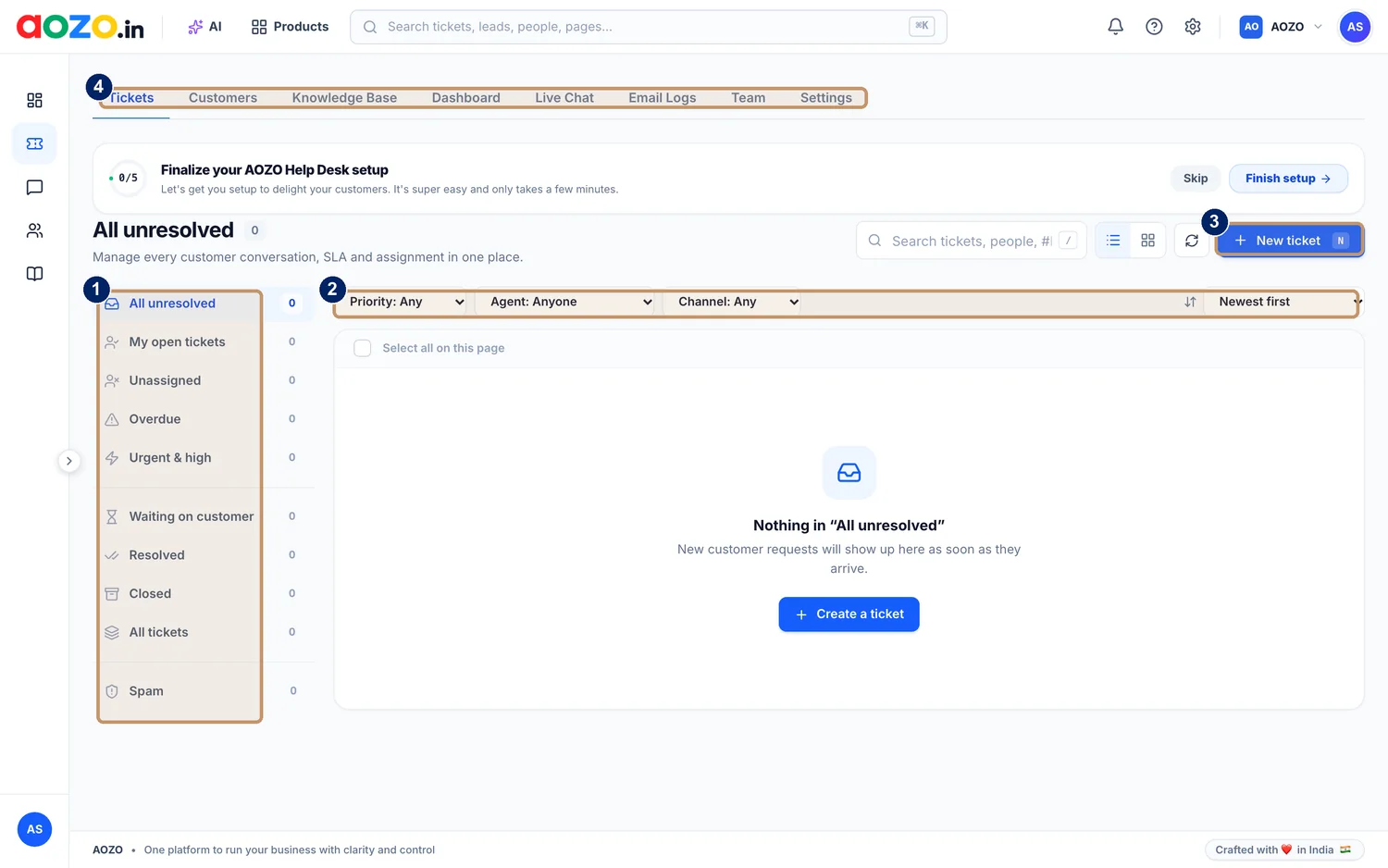
- Ticket views on the left, each with a count
- Filters for priority, agent, channel and sort order
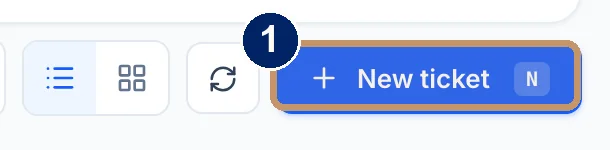
- New ticket
- Helpdesk tabs along the top
#The ticket views
| View | Shows |
|---|---|
| All unresolved | Every ticket that still needs an answer |
| My open tickets | Tickets assigned to you |
| Unassigned | Tickets nobody owns yet |
| Overdue | Tickets past their due time |
| Urgent and high | Tickets with a high priority |
| Waiting on customer | Tickets where you are waiting for a reply |
| Resolved | Tickets you have answered |
| Closed | Tickets that are finished |
| All tickets | Everything |
| Spam | Messages you have marked as spam |
#Work through the day
Start with Unassigned
Open the Unassigned view and give each ticket an owner. If nobody owns it, nobody will answer it.
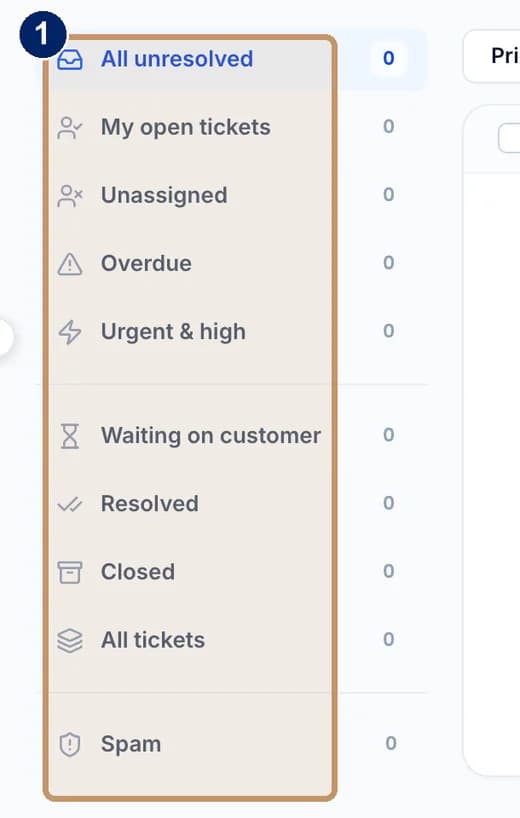
- The ticket views
Handle Urgent and high
Open Urgent and high next, then Overdue.
Filter
Use the Priority, Agent and Channel filters and the Newest first sort to narrow the list. Use the search box to find a ticket or customer.

- Priority, Agent, Channel and sort
Reply and update
Open a ticket, reply to the customer and set the right status, for example Waiting on customer or Resolved.
Close the loop
Tell the customer when it is resolved, not just when you start working on it.

#Create a ticket by hand
Choose New ticket
Select the blue New ticket button, or press N.
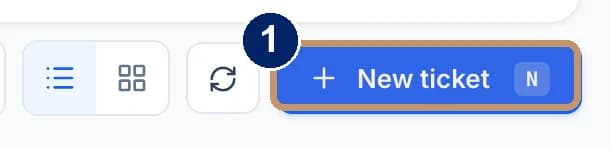
- New ticket
Describe the request
Pick the customer and write what they need.
Set priority and owner
Choose a priority and assign an agent, then save.
Give every ticket one owner and one request. Do not mix two problems in one ticket.