Start a call or schedule a meeting
Start a voice or video call from the conversation, or schedule one for later.
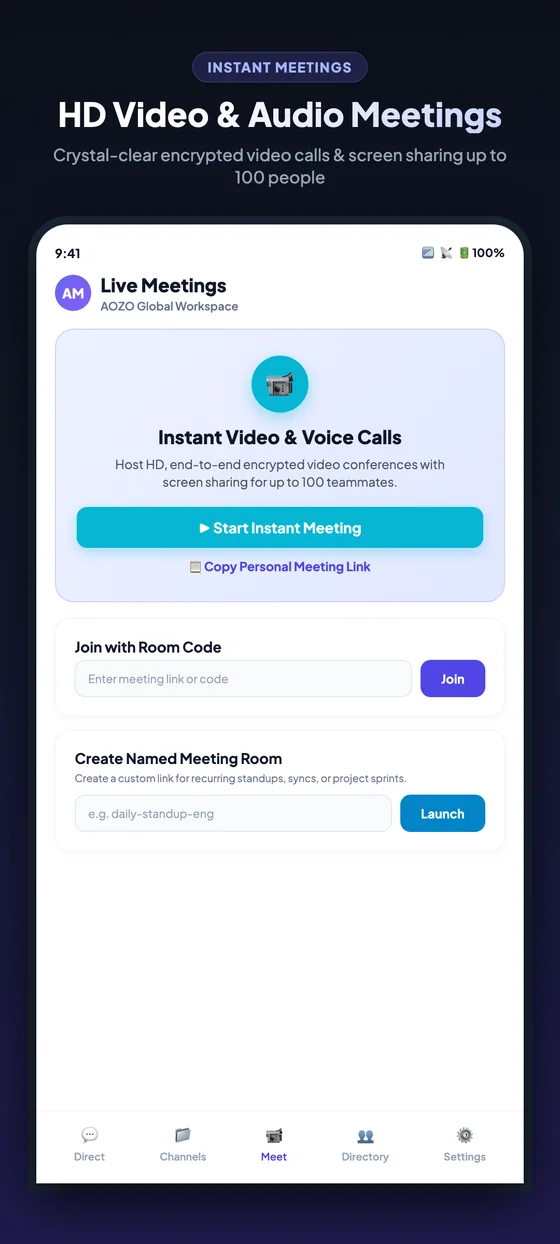
The Meet screen on mobile.
Open Meet
Choose Meet in Hubble.
Start now
Choose Start Instant Meeting to start an instant video and voice call, and copy the meeting link to share.
Join with a code
Enter a room code and choose Join to join a meeting someone else started.
Create a named room
Give a meeting room a name, for example for a recurring sync, and choose Launch.
Schedule one for later
You can also start a call or schedule a meeting from a conversation, and share it in the space.