Secure your sign-in
Turn on email OTP, an authenticator app or a passkey to protect every AOZO app at once.
Because every AOZO app shares one login, you protect them all in one place.
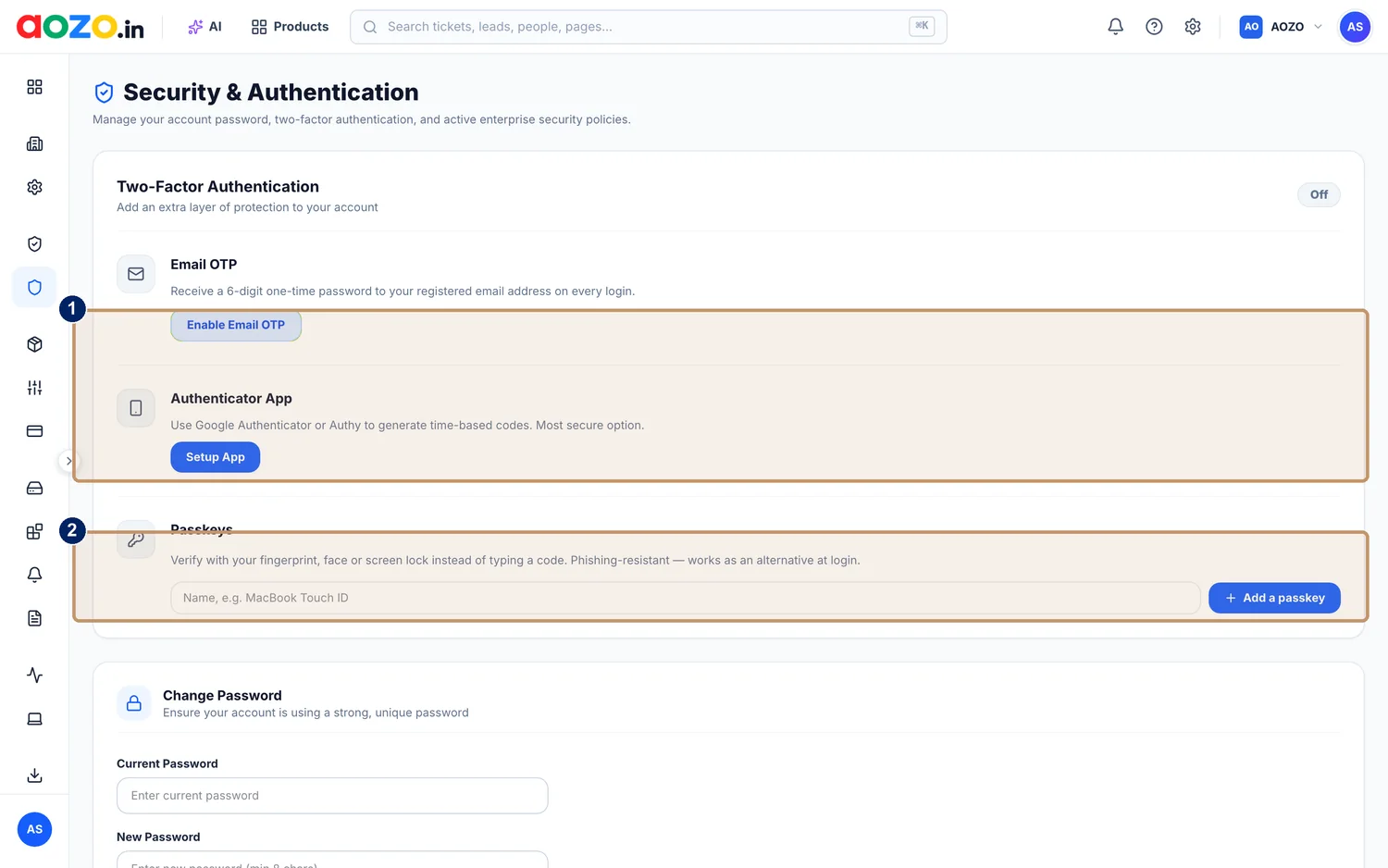
- Email OTP and Authenticator App
- Passkeys
#Sign-in methods
| Method | How it works |
|---|---|
| Email OTP | A 6-digit one-time code is sent to your registered email address when you sign in. |
| Authenticator app | An app such as Google Authenticator or Authy generates time-based codes. |
| Passkey | Verify with your fingerprint, face or screen lock instead of typing a code. Passkeys resist phishing and can be an alternative way to sign in. |
#Turn it on
Open Security and Authentication
Open your profile and go to Security and Authentication. Two-Factor Authentication shows Off until you turn something on.
Enable Email OTP
Choose Enable Email OTP to receive a one-time code by email on every login.

- Enable Email OTP
Or set up an authenticator app
Choose Setup App, then scan the code with Google Authenticator or Authy.

- Setup App
Add a passkey
Under Passkeys, give it a name you will recognise, for example “MacBook Touch ID”, then choose Add a passkey.

- Passkey name
- Add a passkey
Change your password
On the same page, use Change Password to set a unique, strong password.

- Change Password




Heads up
Keep passwords, passkeys and codes private. Never share them, even with colleagues.
#Related
- The Security page explains what AOZO does and what you control.
- Review recent sign-ins from your workspace home.