Run your deals pipeline
Move deals through Discovery, Demo, Proposal Sent, Negotiation and Closed Won.
The Deals page shows your pipeline as a Kanban board, one column per stage. Switch to List view when you want to scan or sort.
#The pipeline stages
- Discovery: you are learning what the customer needs.
- Demo: you are showing the product.
- Proposal Sent: the customer has your proposal.
- Negotiation: you are agreeing price and terms.
- Closed Won: the deal is won.
#Work your pipeline
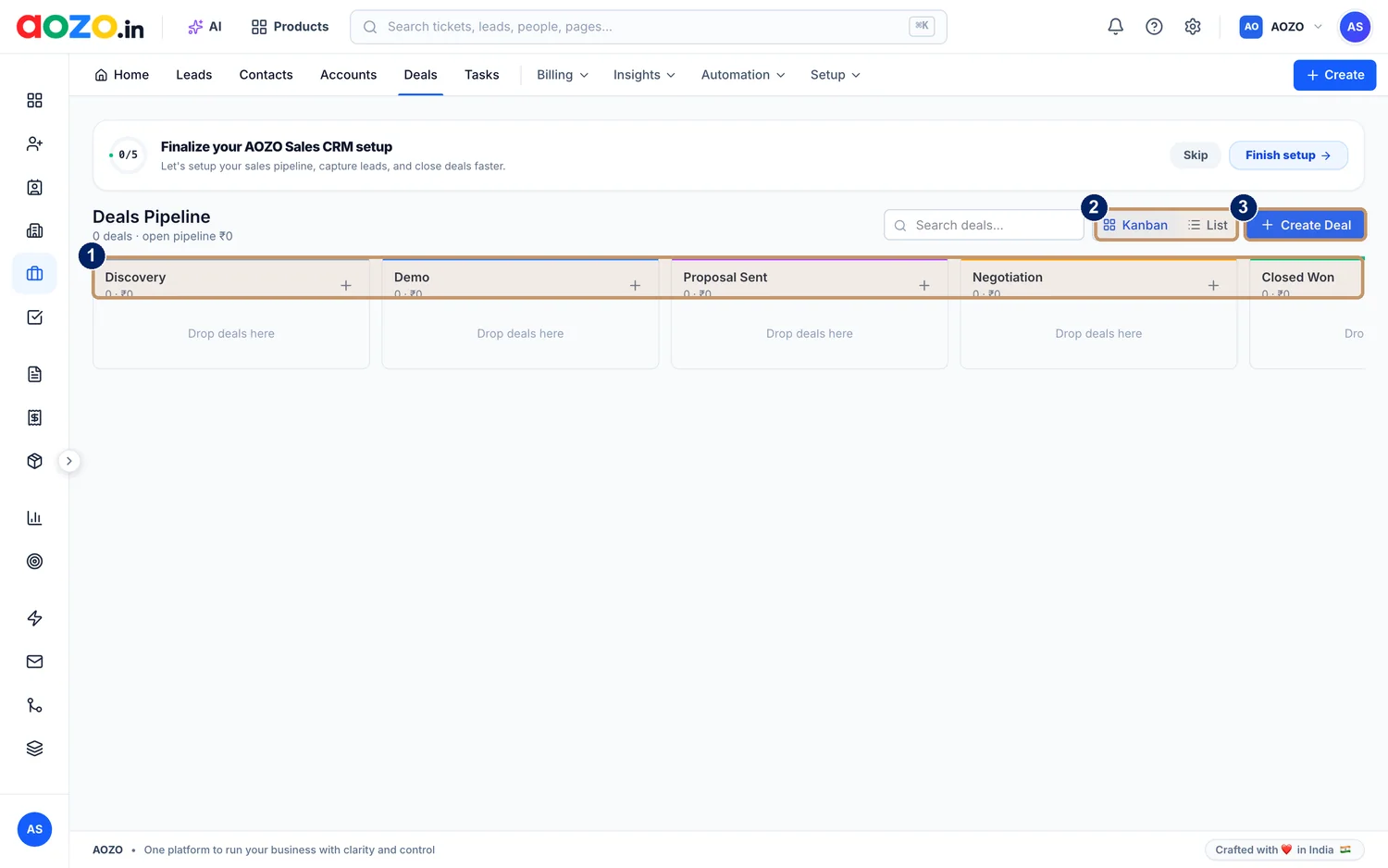
- Pipeline stages, from Discovery to Closed Won
- Kanban and List view toggle
- Create Deal
Open Deals
Choose Deals in the CRM top menu. The header shows how many deals are open and the pipeline value.

- Deals
Add a deal
Select Create Deal, or the + at the top of a stage, and enter the deal name, the customer and its value.

- + adds a deal straight into that stage
Move it forward
Drag the deal card to the next stage as the conversation progresses. Each column header shows how many deals it holds and their total value.
Find a deal
Use the search box above the board to find a deal by name.

- Search deals
Switch view
Use the Kanban and List toggle. List view is better for sorting and scanning many deals.

- Kanban and List toggle
Close it out
Drag a won deal to Closed Won. Then create its invoice from Billing.




Support tickets and invoices for the same customer appear next to the deal, so you always see the full picture.
Keep every deal in the stage that matches reality. A pipeline you can trust is worth more than a full one.