Capture and manage leads
Add leads, import them, filter them and see which ones to call first.
The Leads page lists every lead with its status, source, score and expected value. Use it as your daily call list.
#Before you start
- You need access to AOZO CRM in your workspace.
- A new workspace has no leads yet. You will see “No leads found” until you add or import some.
#Find your way around
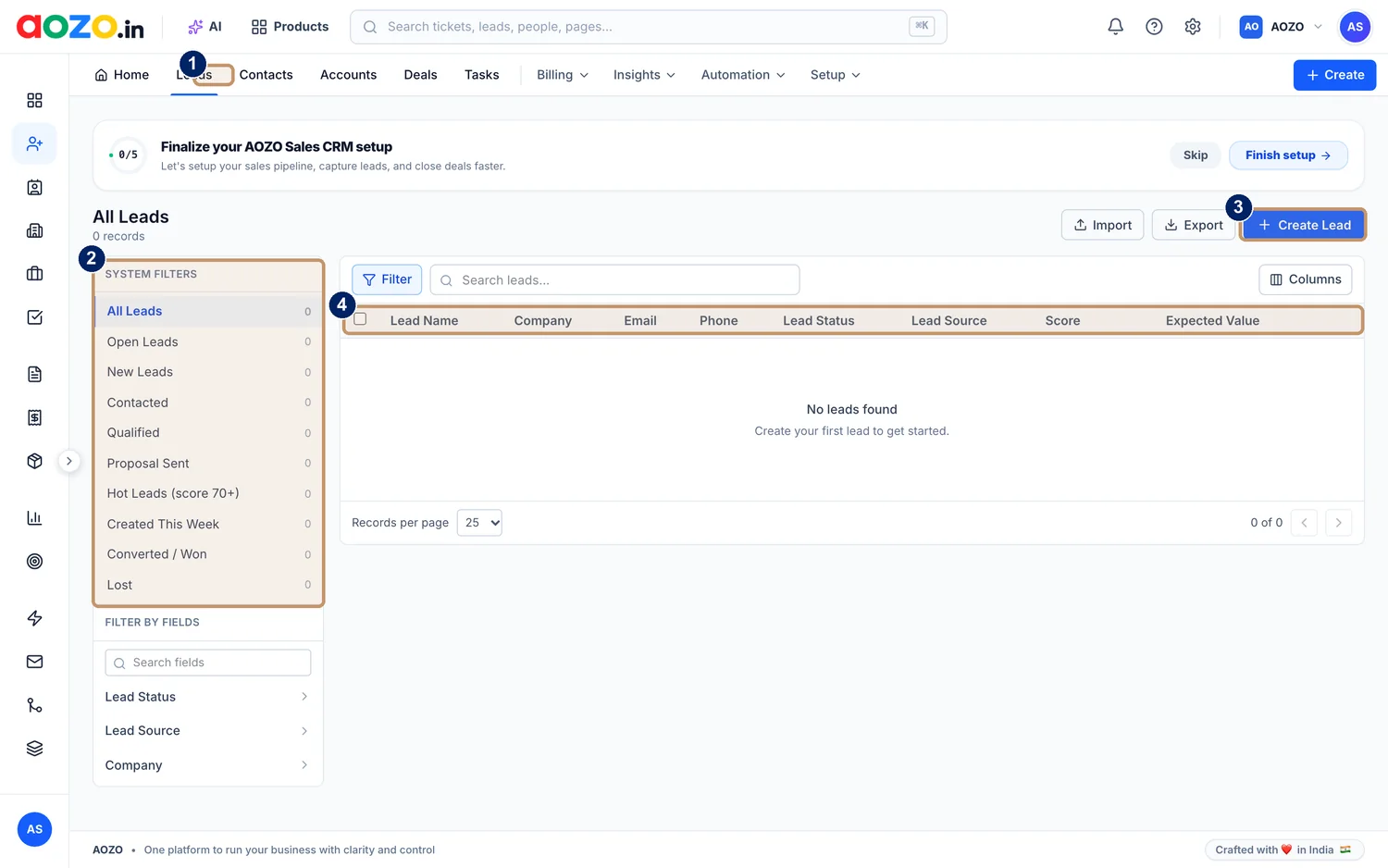
- Leads tab in the top menu
- System filters: ready-made views of your leads
- Import, Export and Create Lead
- Lead table: name, company, email, phone, status, source, score and expected value
#Add a lead
Open Leads
Choose Leads in the CRM top menu. The page title shows “All Leads” and how many records you have.

- Leads
Choose Create Lead
Select the blue Create Lead button at the top right of the list.
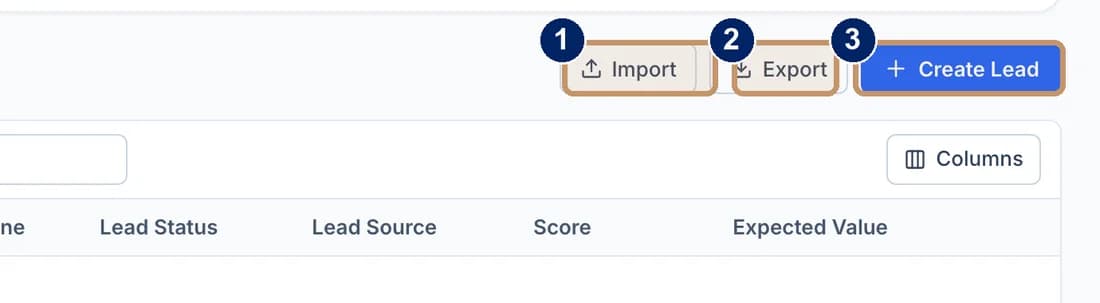
- Import: bring leads in from a file
- Export: take your leads out
- Create Lead: add one by hand
Fill in the details
Enter the lead’s name and company, how to reach them (email and phone), where the lead came from (source) and what it could be worth (expected value).
Save
The lead appears in the list with a status and a score. Open it to see its activity and add follow-ups.

#Import and export leads
- Choose Import to bring many leads in at once from a file.
- Choose Export to download your leads, for example to share a list or keep a backup.
- CRM also supports workspace API keys if you want to send leads in from your own systems.
#Use the system filters
System filters give you ready-made views so you do not have to build them. The count beside each filter shows how many leads it holds.
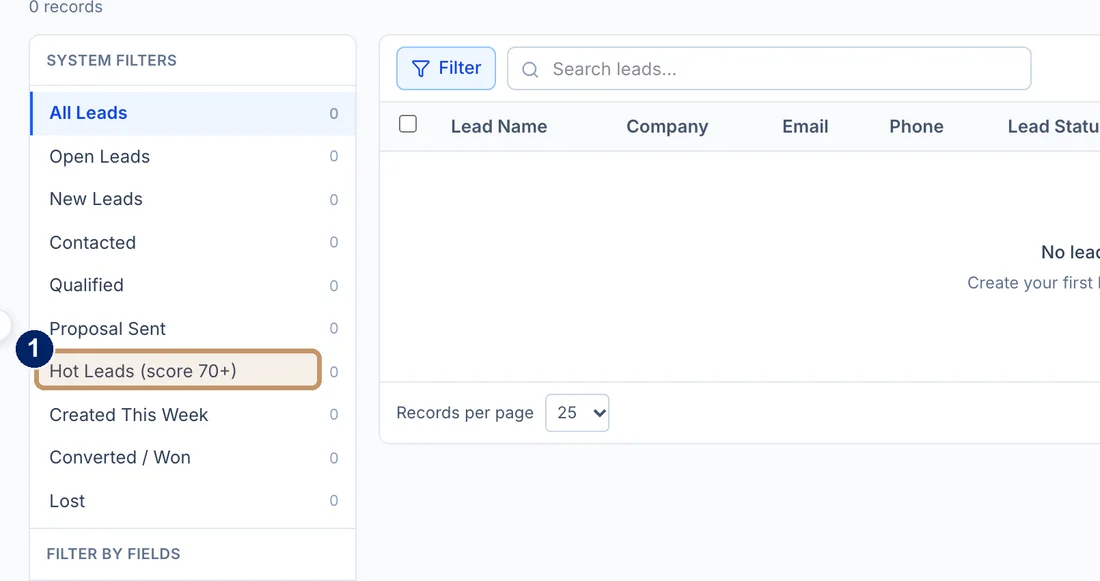
- Hot Leads (score 70+): the leads most worth a call today
| Filter | What it shows |
|---|---|
| All Leads | Every lead |
| Open Leads | Leads still in play |
| New Leads | Leads nobody has worked yet |
| Contacted | Leads you have reached |
| Qualified | Leads that fit what you sell |
| Proposal Sent | Leads that have a proposal |
| Hot Leads (score 70+) | Leads with a score of 70 or more |
| Created This Week | Leads added in the last week |
| Converted / Won | Leads that became customers |
| Lost | Leads that did not buy |
Below the system filters, “Filter by fields” lets you narrow the list by Lead Status, Lead Source or Company. Use the Filter button and the search box above the table to find a specific lead, and the Columns button to choose which columns show.
#Understand the score
Each lead gets a score. A higher score means the lead looks more worth a call. Hot Leads (score 70+) is the list to start your day with.
Review the lead source column every month. The sources with the highest scores and the most won deals deserve more of your time.
#Common questions
#Why does the list say “No leads found”?
You have not added any leads yet, or the filter you picked has none. Choose All Leads, or select Create Lead to add your first one.
#How many leads show on a page?
The list shows 25 records per page by default. Change “Records per page” at the bottom of the table and use the arrows to move between pages.