Manage the employee directory
Add team members and track active, notice period, left and inactive staff.
The Employee Directory lists everyone in your organisation with their role, department, job title and status.
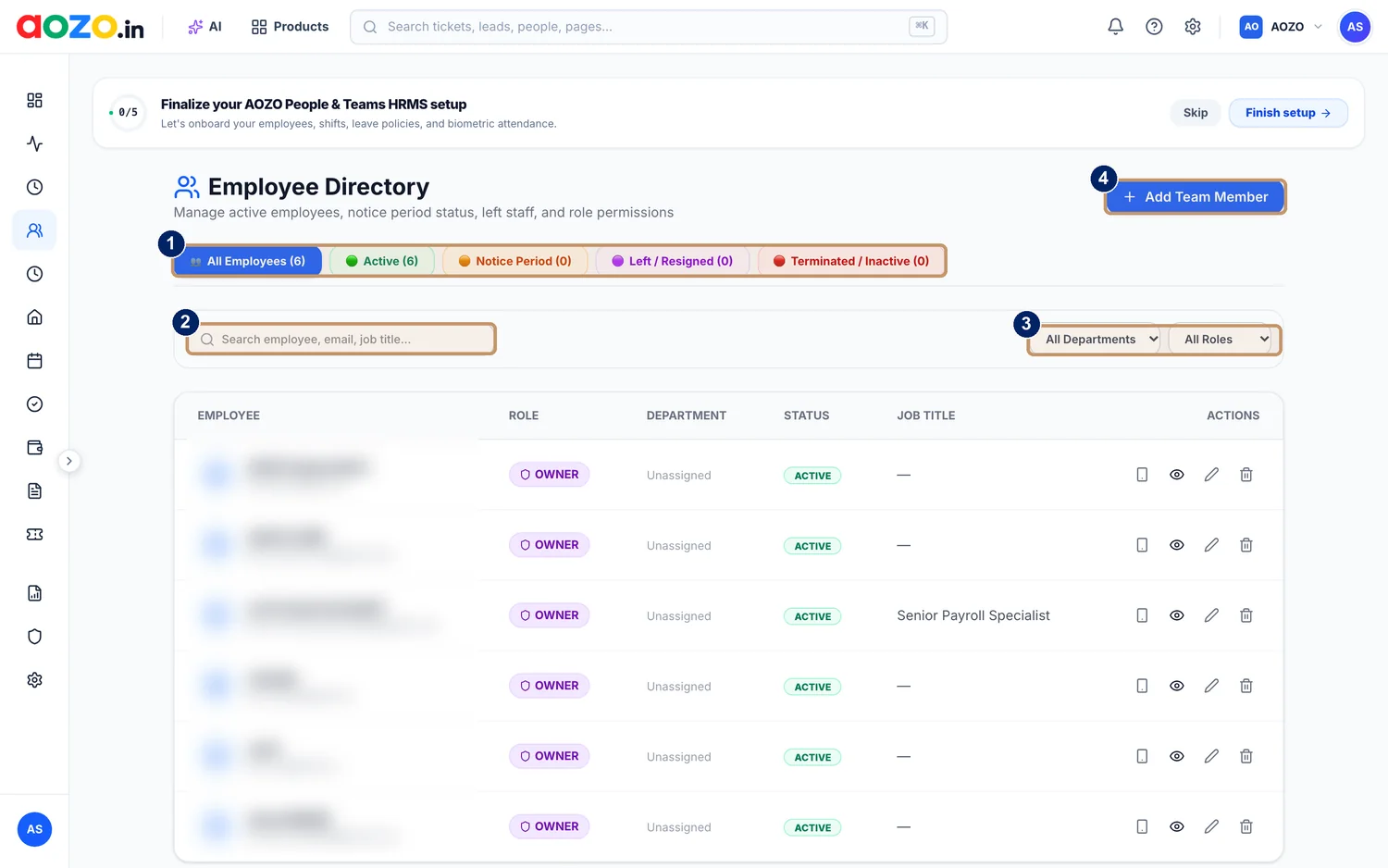
- Status tabs: All Employees, Active, Notice Period, Left or Resigned, Terminated or Inactive
- Search by employee, email or job title
- Department and role filters
- Add Team Member
Names and emails in this screenshot are blurred.
#Add a team member
Open Employee Directory
Choose Employee Directory in AOZO Teams.
Choose Add Team Member
Select the blue Add Team Member button at the top right.

- Add Team Member
Enter the details
Add their name, email, role, department and job title.
Save
They appear in the list with an Active status. Everyone is also visible to the owner and admins.

#Find and filter people
- Search by employee name, email or job title.
- Filter by department and by role.
- Use the tabs to see Active people, people in a Notice Period, people who Left or Resigned, and people who were Terminated or are Inactive.

- Status tabs, each with a count

- Search by employee, email or job title
- Department and role filters
#What each row shows
| Column | Meaning |
|---|---|
| Employee | Name and email |
| Role | Their access level, for example Owner |
| Department | The team they belong to, or Unassigned |
| Status | Active, Notice Period, Left and so on |
| Job title | What they do |
| Actions | View, edit or remove |
Tip
Keep Status up to date. When someone leaves, change their status the same day so their access and payroll follow.