Plan shifts and rosters
Schedule shifts, handle timings and timezones and publish the roster.
Shift and Roster Management helps you plan employee shift rotations, handle multiple timezones and publish the roster.
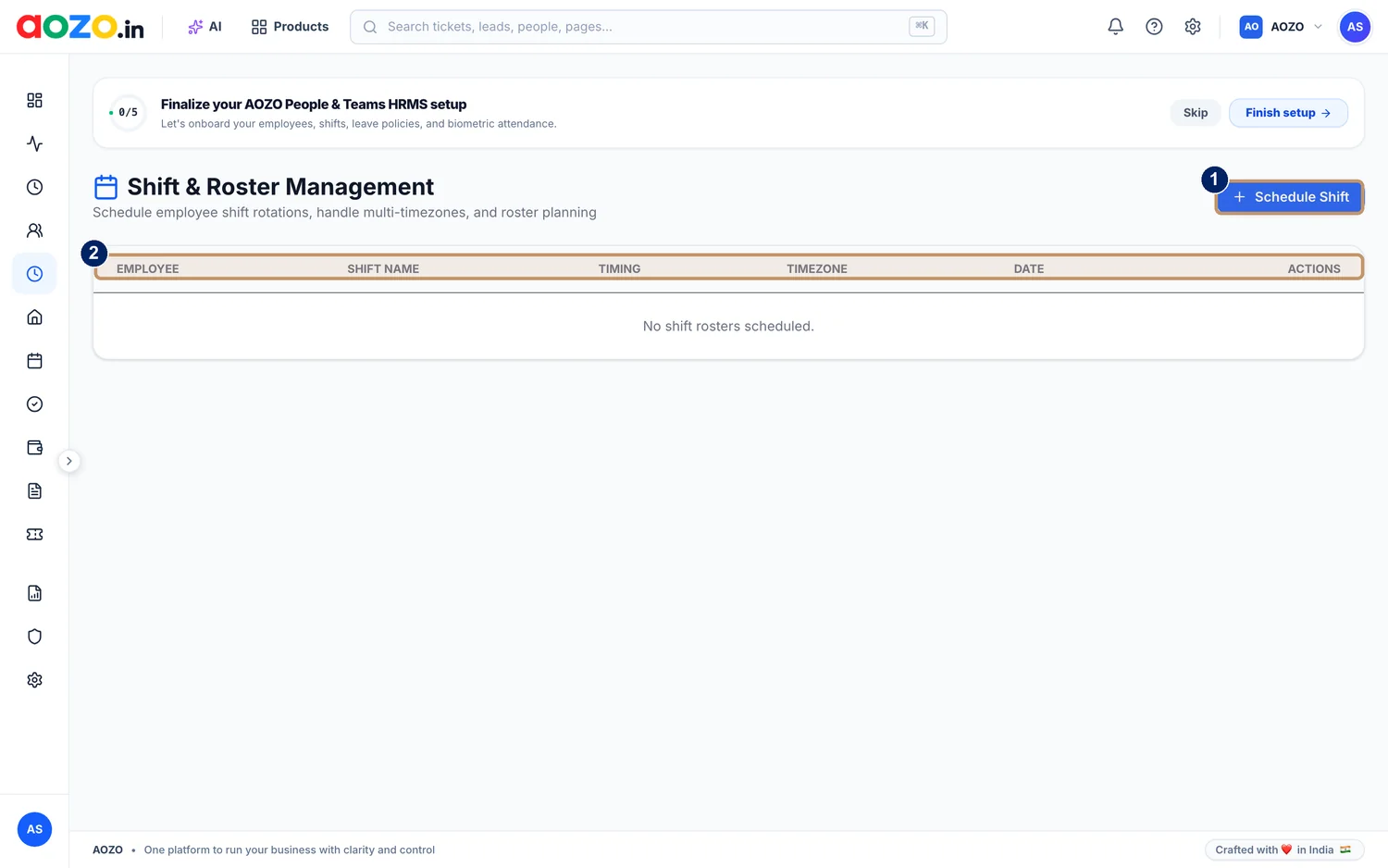
- Schedule Shift
- Roster columns: employee, shift name, timing, timezone, date and actions
Open Shifts
Choose Shifts in AOZO Teams.
Choose Schedule Shift
Select the Schedule Shift button.
- Schedule Shift
Fill in the shift
Pick the employee, the shift name, the timing, the timezone and the date.
Save and publish
The shift appears in the roster. Publish the roster so employees can see it.
Tip
If your team works across timezones, set the timezone on each shift so everyone sees the right time.