Install the AOZO desktop app on Mac and Windows
Download AOZO for Mac or Windows, install it, get past the first-launch security check and sign in. Includes shortcuts, notifications and IT rollout.
AOZO Desktop opens your AOZO workspace in its own window, outside the browser. It is the same app.aozo.in you use today, so every app, every change and every update is there the moment it is live, with no reinstall.
- Its own window and Dock or taskbar icon, so AOZO is one click away and never lost among browser tabs.
- Desktop notifications with sound for Hubble messages, approvals and updates, even when the window is in the background.
- An unread count on the AOZO icon in the Dock.
- Exports, invoices and attachments save straight to your Downloads folder.
- Keyboard shortcuts for back, forward, reload and home.
#Download
| Mac | Windows | |
|---|---|---|
| System | macOS 11 Big Sur or later | Windows 10 or 11, 64-bit |
| Processor | Apple silicon (M1 and later) or Intel | Any 64-bit (x64) processor |
| File | AOZO-mac.dmg | AOZO-windows-setup.exe (or AOZO-windows.msi for IT teams) |
| App version | 0.2.0 | 0.1.0 |
| Needs | An internet connection and an AOZO account | An internet connection and an AOZO account |
Share this page with your team: aozo.in/docs/workspace/desktop-app. Each person installs the app on their own computer and signs in with their own AOZO account.
#Install on Mac
Download the installer
Choose Download for Mac above. AOZO-mac.dmg is saved to your Downloads folder.
Open it and drag AOZO into Applications
Double-click AOZO-mac.dmg. In the window that opens, drag the AOZO icon onto the Applications folder. Then close the window and eject AOZO from the Finder sidebar.
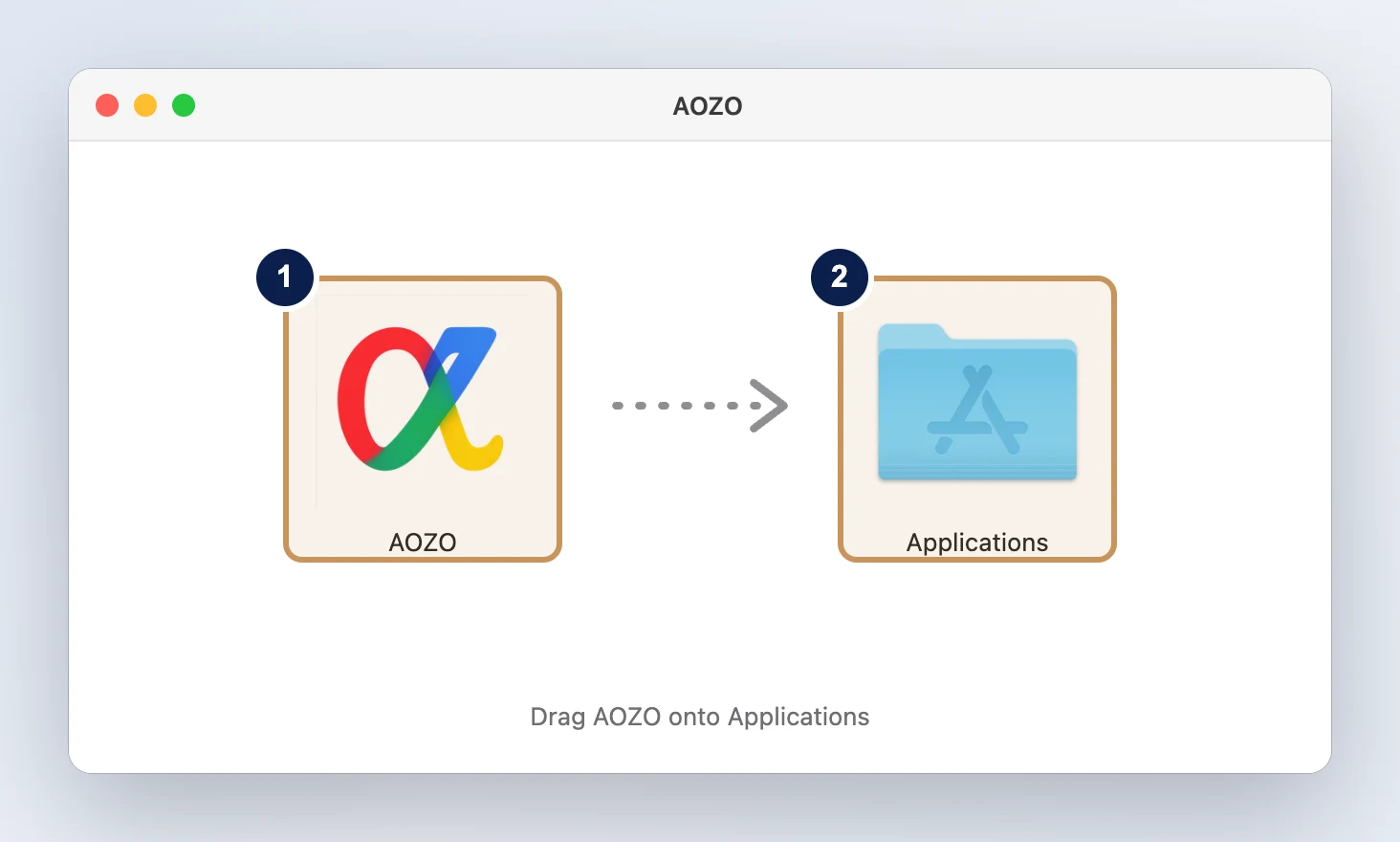
- The AOZO app
- Drop it on Applications
Open AOZO
Open Applications (or press ⌘ Space and type AOZO) and double-click AOZO. The first time, macOS shows a message that it could not verify AOZO. Choose Done. This happens only once, because AOZO is installed from our website rather than the App Store.
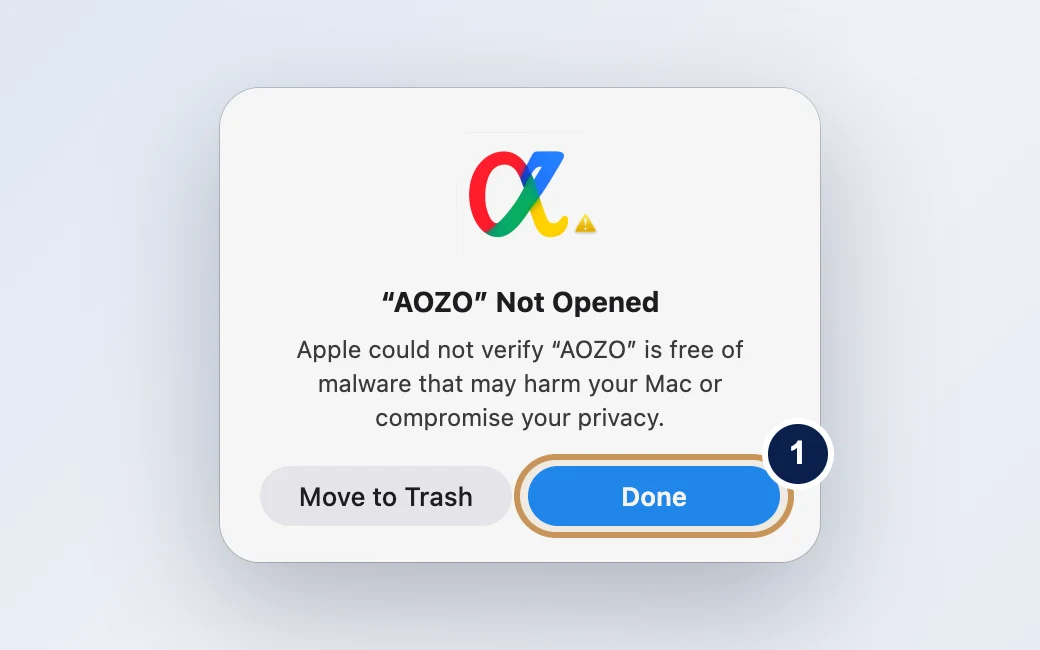
- Choose Done
Allow it in System Settings
Open System Settings → Privacy & Security and scroll down to Security. Next to “AOZO” was blocked to protect your Mac, choose Open Anyway, then enter your Mac password and choose Open Anyway again.
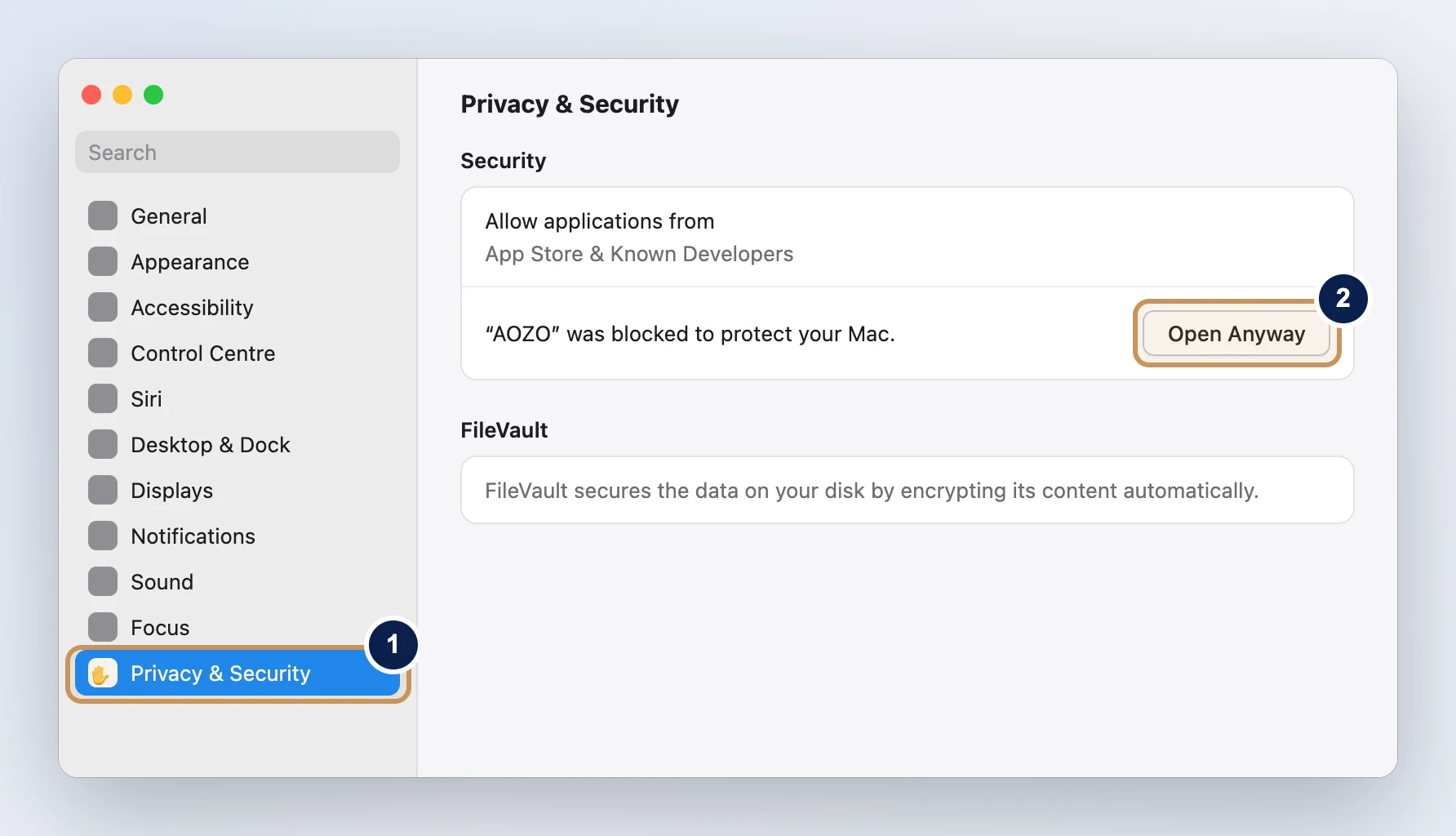
- Privacy & Security
- Open Anyway
Sign in
AOZO opens on the sign-in page. Sign in the way you always do: email code, password or Google. You stay signed in the next time you open the app.
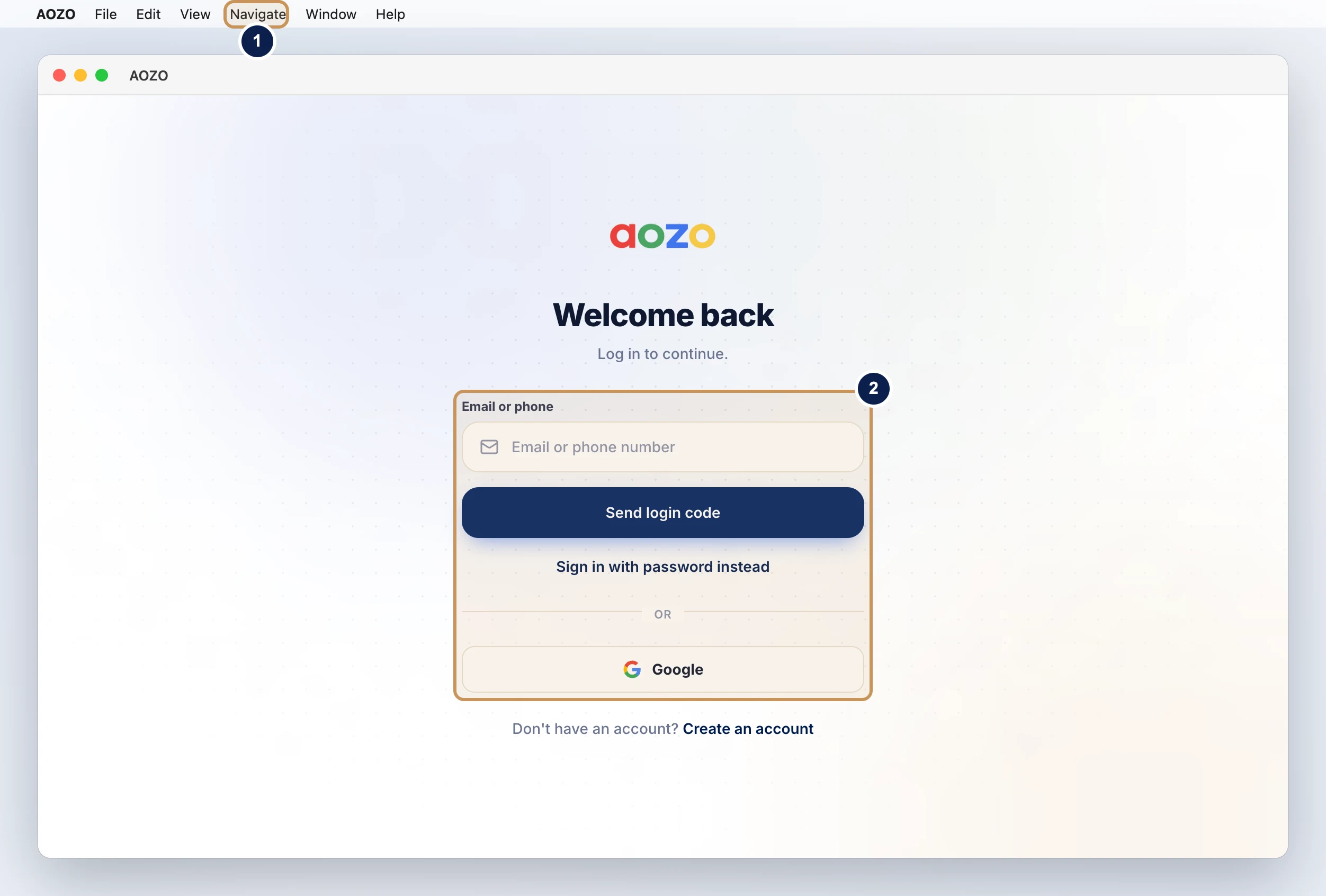
- The AOZO window, with the Navigate menu in the Mac menu bar
- Sign in as usual
Turn on notifications
When AOZO asks, choose Enable Notifications, then Allow in the macOS prompt. You can change this any time in System Settings → Notifications → AOZO.
Keep it in the Dock
Right-click the AOZO icon in the Dock and choose Options → Keep in Dock.


On macOS 14 Sonoma and earlier you can also right-click AOZO in Applications, choose Open, then Open again, instead of going to System Settings.
#Install on Windows
Download the installer
Choose Download for Windows above. AOZO-windows-setup.exe is saved to your Downloads folder.
Run it
Double-click AOZO-windows-setup.exe. If Windows shows “Windows protected your PC”, choose More info, then Run anyway. This appears because the installer is new to Microsoft SmartScreen.
Finish the setup
Follow the installer: choose Next, then Install, then Finish. AOZO is added to the Start menu and the desktop.
Sign in
Open AOZO from the Start menu and sign in as usual.
Turn on notifications
When AOZO asks, choose Enable Notifications. To change it later, open Settings → System → Notifications → AOZO.
Pin it
Right-click AOZO in the taskbar and choose Pin to taskbar.
#Using the app
#Shortcuts
The Navigate menu in the Mac menu bar has these. On Windows use Ctrl instead of ⌘.
| Action | Mac | Windows |
|---|---|---|
| Back | ⌘ [ | Ctrl + [ |
| Forward | ⌘ ] | Ctrl + ] |
| Reload the page | ⌘ R | Ctrl + R |
| Go to your workspace home | ⇧ ⌘ H | Ctrl + Shift + H |
| Open this page in your browser | ⇧ ⌘ O | Ctrl + Shift + O |
| Search pages or ask AURA AI | ⌘ K | Ctrl + K |
#Notifications and unread count
New Hubble messages, approvals and other updates appear as desktop notifications with your chosen sound. The AOZO icon in the Dock shows how many are unread; the count clears when you open them.
#Downloads and links
- Exports, invoices, payslips and attachments are saved to your Downloads folder, and a notification tells you when each one is done.
- AOZO pages that open in a new tab, such as a print preview or Billing, open in a new AOZO window.
- Links to other websites open in your normal browser.
#Updates
You do not need to update the app for new AOZO features. The app loads app.aozo.in live, so it always has the latest version of every AOZO product.
Now and then we release a new version of the app itself, for example for new desktop features. When we do, download it again from this page and install it over the old one: on Mac drag the new AOZO into Applications and choose Replace; on Windows run the new installer. You stay signed in.
#For IT teams
| Task | How |
|---|---|
| Install on many Macs | Copy AOZO.app from the disk image into /Applications with your device management tool (Jamf, Kandji, Intune). Clear the download flag so the first-launch check does not appear: xattr -dr com.apple.quarantine /Applications/AOZO.app |
| Install on many Windows PCs | Use the MSI package for silent installs: msiexec /i AOZO-windows.msi /qn (download it from aozo.in/downloads/AOZO-windows.msi). |
| Network | Allow HTTPS (port 443) to aozo.in and *.aozo.in. The app uses the same addresses as the website. |
| Sign-in | The app uses AOZO sign-in, including two-factor sign-in and passkeys set up for your workspace. |
#Troubleshooting
| Problem | Fix |
|---|---|
| “AOZO” is damaged and can't be opened (Mac) | The download was interrupted. Delete AOZO from Applications, download it again and reinstall. |
| No Open Anyway button (Mac) | Open AOZO once first, choose Done, then go to System Settings → Privacy & Security. The button appears for about an hour after the attempt. |
| No notifications | Mac: System Settings → Notifications → AOZO, turn on Allow notifications. Windows: Settings → System → Notifications → AOZO. Also check Focus or Do Not Disturb is off. |
| A page looks out of date | Reload with ⌘ R (Ctrl + R on Windows). |
| A file did not download | Look in your Downloads folder. If it is not there, use Navigate → Open This Page in Browser and download it from there. |
| Signed out after updating | Sign in again. Your data is in your AOZO workspace, not on the computer, so nothing is lost. |
#Uninstall
- Mac: quit AOZO, then drag AOZO from Applications to the Bin.
- Windows: Settings → Apps → Installed apps → AOZO → Uninstall.
- Your data stays in your AOZO workspace. Sign in again on any computer or at app.aozo.in.