AOZO POS overview
Table QR ordering, billing and kitchen display for restaurants, cafés and QSRs.
Guests scan a QR on their table, order and pay from their phone. The order reaches your kitchen screen in seconds, and your cashier closes the GST bill without typing anything twice.
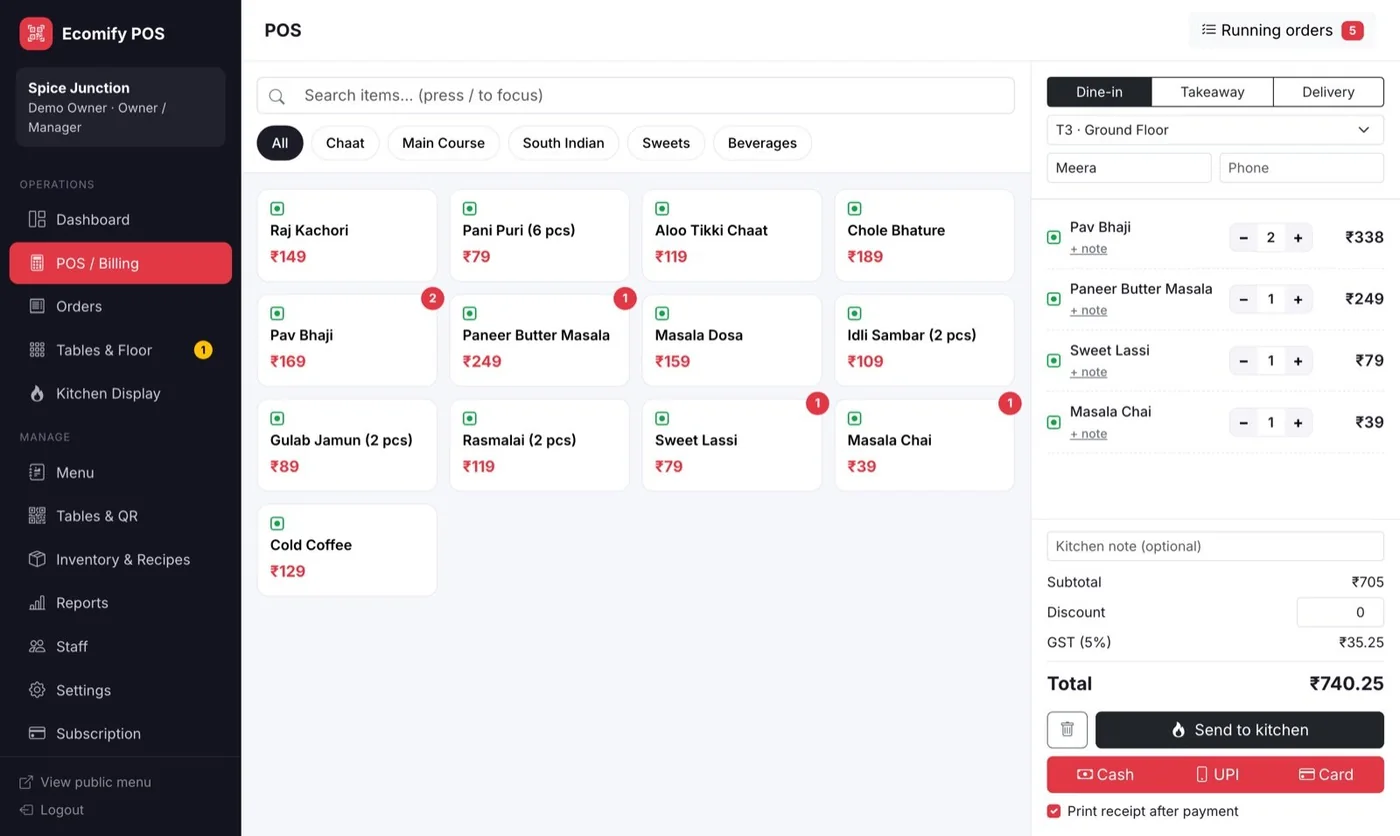
AOZO POS counter screen. Screenshot with sample data.
#How a table order flows
- The guest scans the table QR. The menu opens in their browser with prices, veg and non-veg marks and photos.
- A ticket appears on the kitchen display with a chime, and the KOT can be printed.
- The guest sees live status: Received, Preparing, Ready, Served.
- The guest sees the itemised bill with GST and a UPI QR for the exact amount. The cashier marks it paid and prints the invoice.
#The screens your team uses
| Screen | Used by | What it is for |
|---|---|---|
| POS and Billing | Cashier | Take counter orders and bill them |
| Orders | Cashier, owner | See every order |
| Tables and Floor | Waiter, cashier | See tables, waiter calls and running bills |
| Kitchen Display | Kitchen | See and update tickets |
| Menu, Tables and QR, Inventory and Recipes | Owner | Set up your menu, QR codes and stock |
| Dashboard and Reports | Owner | Read your numbers |
#What you need
- A laptop, desktop or tablet with a modern browser for the counter and the kitchen.
- A standard 80mm thermal printer for KOTs and bills.
- An internet connection. AOZO POS does not work offline.